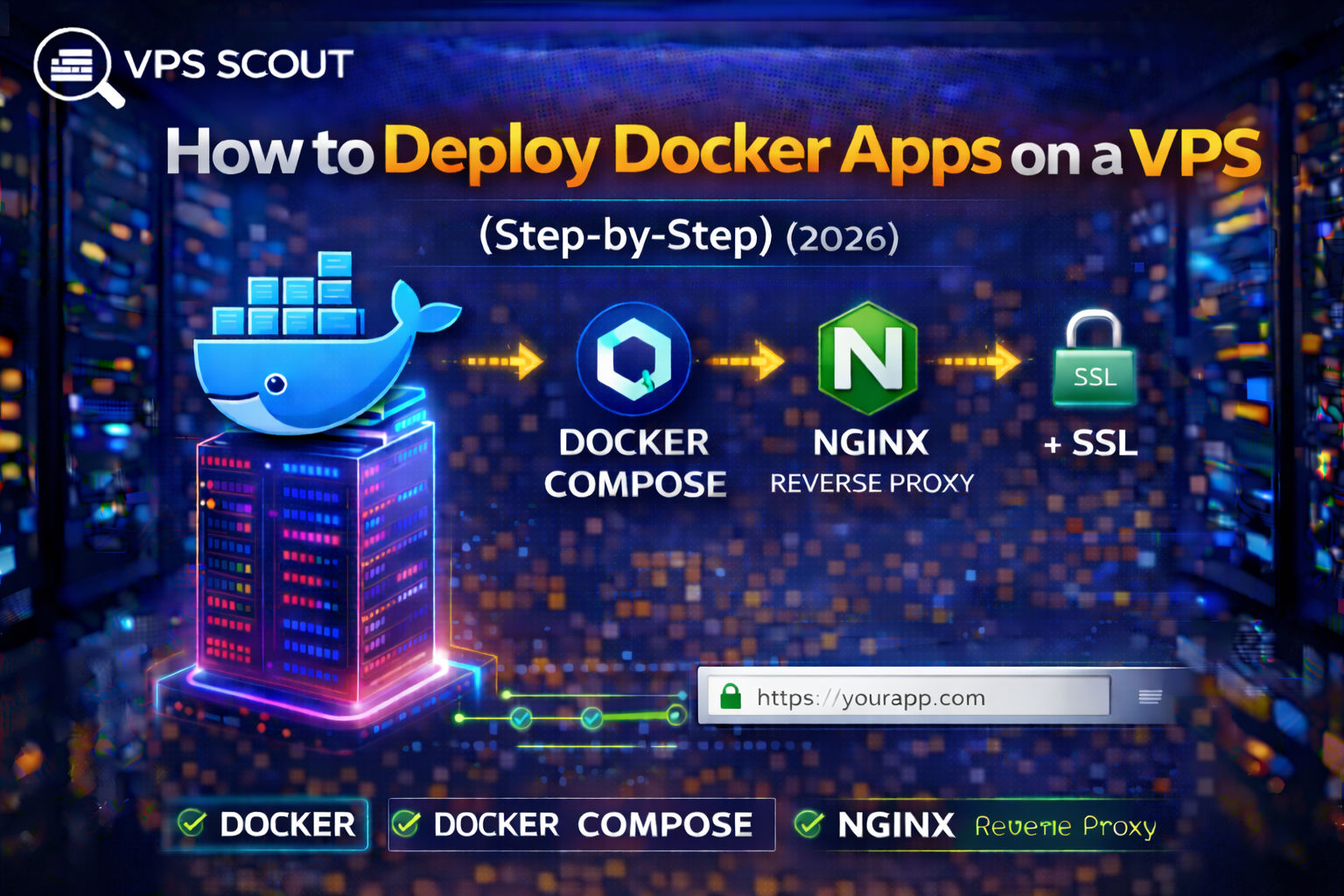
Deploying applications on a Virtual Private Server using Docker provides a cost-effective and scalable hosting solution. This approach utilizes a stack consisting of Ubuntu, Docker Compose, and Nginx to manage web applications and APIs. It offers a repeatable workflow that avoids the complexities of larger container orchestration platforms.
The deployment process involves configuring a reverse proxy to handle domain routing and securing traffic with Let’s Encrypt SSL certificates. Best practices include using non-root users, managing environment variables for security, and implementing restart policies. This setup supports hosting multiple applications through clean subdomain routing and automated updates.
Deploying Docker apps on a VPS is one of the best ways to host:
- web apps
- APIs
- SaaS projects
- WordPress stacks
- staging environments
- side projects
And once you learn it, you’ll never want to go back to messy “manual installs.”
The good news?
You don’t need Kubernetes.
You don’t need a complicated cloud setup.
For most projects, this stack is enough:
✅ VPS + Docker + Docker Compose + Nginx + SSL
This guide shows you how to deploy Docker apps on a VPS step-by-step.
Quick Setup Overview (What You’ll Build)
By the end, you’ll have:
✅ A VPS (Ubuntu 24.04 recommended)
✅ Docker installed
✅ Docker Compose installed
✅ A sample app deployed
✅ Nginx reverse proxy
✅ Free SSL (Let’s Encrypt)
✅ A simple deployment workflow
What You Need Before Starting
Recommended VPS Specs
For most Docker apps:
- 2 vCPU
- 2–4GB RAM
- NVMe storage
- Ubuntu 22.04 or 24.04
Read next: VPS CPU requirements
Read next: VPS RAM requirements
Domain Name (Optional but recommended)
You can deploy using just an IP address.
But if you want SSL + production hosting, you need a domain like:
app.vpsscout.comapi.vpsscout.com
Step 1: Create Your VPS
Choose:
- Ubuntu 24.04 LTS (recommended)
- datacenter close to your users
Read next: How to choose VPS location
Step 2: Connect to Your VPS via SSH
From your computer:
ssh root@YOUR_SERVER_IP
If you use a custom port:
ssh root@YOUR_SERVER_IP -p 2222
Step 3: Update the VPS
apt update && apt upgrade -y
Step 4: Create a Non-Root User (Recommended)
adduser deploy
usermod -aG sudo deploy
Switch to the user:
su - deploy
Step 5: Install Docker (Ubuntu 24.04)
Install dependencies:
sudo apt install -y ca-certificates curl gnupg
Add Docker key:
sudo install -m 0755 -d /etc/apt/keyrings
curl -fsSL https://download.docker.com/linux/ubuntu/gpg | sudo gpg --dearmor -o /etc/apt/keyrings/docker.gpg
sudo chmod a+r /etc/apt/keyrings/docker.gpg
Add Docker repository:
echo \
  "deb [arch=$(dpkg --print-architecture) signed-by=/etc/apt/keyrings/docker.gpg] https://download.docker.com/linux/ubuntu \
  $(. /etc/os-release && echo "$VERSION_CODENAME") stable" | \
  sudo tee /etc/apt/sources.list.d/docker.list > /dev/null
Install Docker:
sudo apt update
sudo apt install -y docker-ce docker-ce-cli containerd.io docker-buildx-plugin docker-compose-plugin
Verify Docker:
docker --version
docker compose version
Step 6: Allow Your User to Run Docker (Without sudo)
sudo usermod -aG docker deploy
Log out and back in:
exit
Then SSH back in as deploy.
Step 7: Create Your App Directory
mkdir -p ~/apps/myapp
cd ~/apps/myapp
Step 8: Create a Docker Compose File
Create:
nano docker-compose.yml
Paste this example (simple web app + Nginx reverse proxy):
services:
  app:
    image: nginxdemos/hello
    container_name: myapp
    restart: unless-stopped
    ports:
      - "8080:80"
Start it:
docker compose up -d
Test it:
curl http://localhost:8080
Now your app is running.
Step 9: Install Nginx (Reverse Proxy)
Install Nginx:
sudo apt install nginx -y
Allow firewall rules:
sudo ufw allow 'Nginx Full'
Step 10: Point Your Domain to Your VPS
In your DNS provider, create an A record:
app.vpsscout.com→YOUR_SERVER_IP
Wait a few minutes for DNS propagation.
Step 11: Configure Nginx Reverse Proxy
Create a config file:
sudo nano /etc/nginx/sites-available/myapp
Paste:
server {
    listen 80;
    server_name app.vpsscout.com;

    location / {
        proxy_pass http://127.0.0.1:8080;
        proxy_set_header Host $host;
        proxy_set_header X-Real-IP $remote_addr;
        proxy_set_header X-Forwarded-For $proxy_add_x_forwarded_for;
        proxy_set_header X-Forwarded-Proto $scheme;
    }
}
Enable it:
sudo ln -s /etc/nginx/sites-available/myapp /etc/nginx/sites-enabled/
sudo nginx -t
sudo systemctl reload nginx
Now your app should load at:
👉 http://app.vpsscout.com
Step 12: Add Free SSL (Let’s Encrypt)
Install Certbot:
sudo apt install certbot python3-certbot-nginx -y
Run:
sudo certbot --nginx -d app.vpsscout.com
Follow the prompts.
Certbot will:
- generate SSL certificates
- update your Nginx config automatically
- set auto-renewal
Test renewal:
sudo certbot renew --dry-run
Now your app is live at:
🔒 https://app.vpsscout.com
Step 13: Deploy Your Own App (Instead of the Demo)
Replace the image: line with your own Docker image.
Example:
services:
  app:
    image: yourdockerhubusername/yourapp:latest
    restart: unless-stopped
    ports:
      - "8080:3000"
Then:
docker compose pull
docker compose up -d
Step 14: Simple CI/CD Deployment Workflow (Beginner Friendly)
Here’s the simplest approach:
Option A: Manual pull + restart (fast and easy)
When you push a new Docker image:
cd ~/apps/myapp
docker compose pull
docker compose up -d
Option B: Git-based deployment
You can store:
- docker-compose.yml
- Nginx configs
- env files
in a Git repo.
Then on the server:
git pull
docker compose up -d --build
Best Practices for Docker VPS Deployments
1) Always use restart policies
Use:
restart: unless-stopped
2) Don’t expose containers directly
Use Nginx reverse proxy.
3) Use .env files for secrets
Never hardcode passwords in compose files.
4) Monitor disk usage
Docker images can fill your disk fast.
Clean unused images:
docker system prune -a
(⚠️ careful with this on production)
FAQ: Deploying Docker Apps on VPS
Is VPS good for Docker?
Yes. VPS hosting is one of the best and cheapest ways to run Docker apps.
Do I need Docker Compose?
Not required, but strongly recommended. It makes deployments and updates much easier.
Do I need Nginx if my app runs on a port?
For production, yes. Nginx gives you:
- SSL termination
- clean domain routing
- security headers
- better performance
Can I host multiple Docker apps on one VPS?
Yes. You can run multiple apps by:
- using different ports
- using Nginx to route by domain/subdomain
Final Verdict
If you want a clean, modern way to host apps:
Docker + VPS is one of the best setups you can learn.
It’s:
- cheap
- scalable
- repeatable
- production-ready
Next Step
If you want the best VPS providers for Docker workflows: