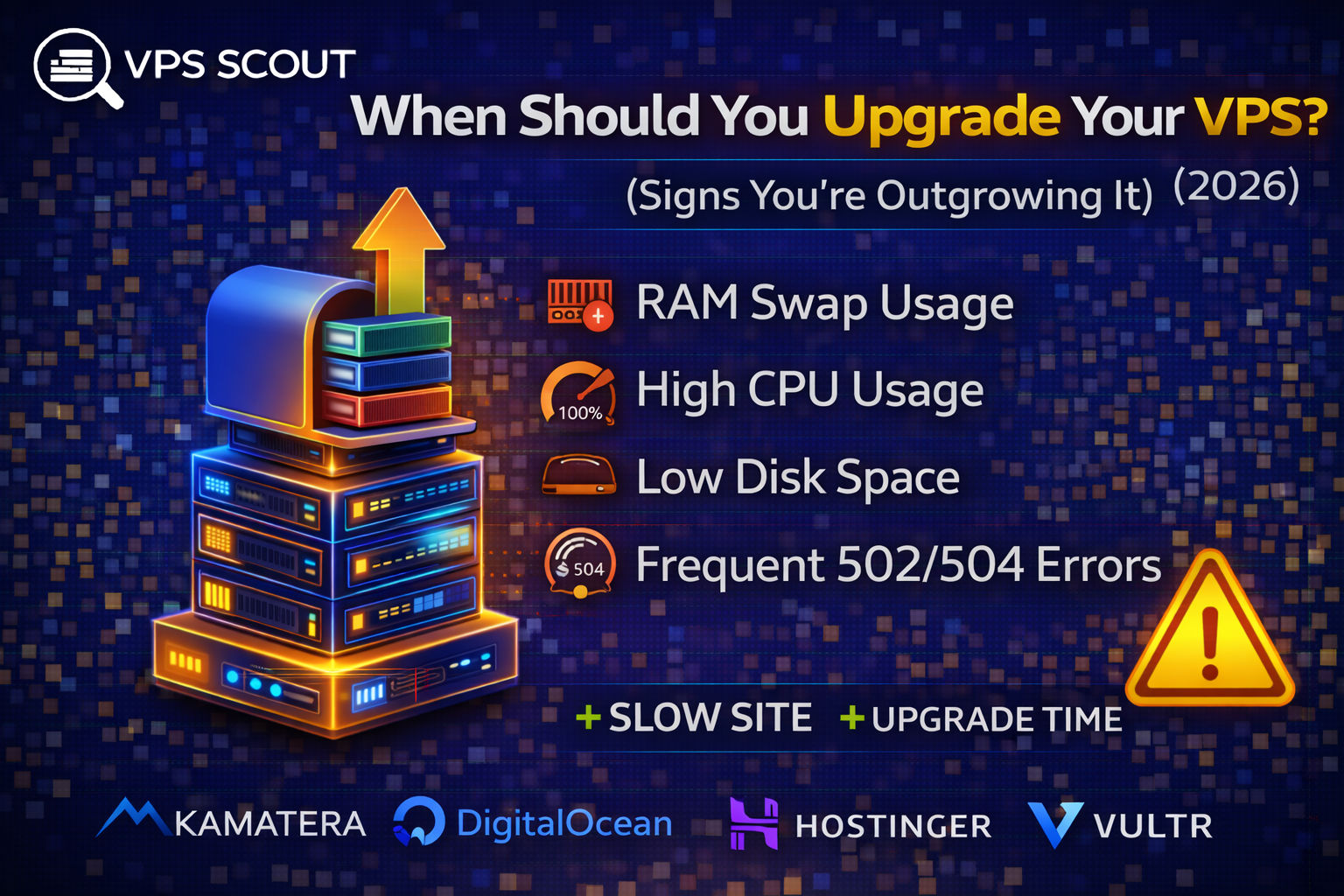
A VPS is awesome… until it isn’t.
Most people don’t realize they’ve outgrown their VPS until one of these happens:
- the site suddenly becomes slow
- the server crashes during traffic spikes
- WooCommerce checkout starts timing out
- WordPress admin becomes painfully laggy
- random 502/504 errors appear
- your VPS hits 100% CPU constantly
The good news is:
Your VPS usually gives you warning signs before it fails.
This guide shows you exactly when you should upgrade your VPS, what to check, and the safest upgrade path.
Quick Answer: When to Upgrade Your VPS
You should upgrade your VPS when:
✅ your RAM usage stays above ~80%
✅ your CPU stays above ~80% during normal traffic
✅ you see swapping (disk used as RAM)
✅ your disk is almost full
✅ you get frequent 502/504 errors
✅ your load average is constantly high
✅ your site becomes slow even with caching
The Most Common Signs You’re Outgrowing Your VPS
1) Your Website Gets Slower Over Time
If your site used to be fast but now feels slow, it usually means:
- traffic increased
- database grew
- plugins increased
- server resources are maxed
This is the most common early sign.
2) Your VPS Runs Out of RAM (Most Common Cause)
RAM is usually the first thing that gets maxed out.
When you run out of RAM, Linux starts using swap.
That’s when you get:
- lag
- slow database queries
- slow WordPress admin
- timeouts
How to check RAM usage
Run:
free -h
Look for:
- low “available” memory
- swap usage increasing
3) Swap Usage Starts Increasing (Big Red Flag)
Swap is disk space used as RAM.
Swap is extremely slow compared to real RAM.
If your VPS uses swap regularly, it’s time to upgrade.
4) CPU Usage Stays High (Especially on WooCommerce)
CPU spikes are normal.
But if your CPU stays above 80% frequently, you’re outgrowing your VPS.
How to check CPU usage
Install htop:
sudo apt install htop -y
htop
5) Your Load Average is Always High
Load average measures how many tasks are waiting for CPU time.
If your load average is consistently higher than your CPU core count, that’s a warning sign.
Example:
- 2 vCPU VPS
- load average constantly 4–6
That means the server is overloaded.
6) You See Frequent 502 / 504 Errors
These errors often mean:
- PHP-FPM ran out of workers
- Nginx/Apache timed out
- the database is overloaded
- your VPS is out of resources
If these errors happen during traffic spikes, upgrade time.
7) Your Disk is Almost Full
Disk filling up causes:
- crashes
- database errors
- backup failures
- update failures
How to check disk usage
Run:
df -h
If you’re above 80%, start planning.
If you’re above 90%, upgrade immediately.
8) Database Queries Get Slow
WooCommerce and large WordPress sites become database-heavy.
Slow database = slow site.
This can be caused by:
- not enough RAM
- slow disk (SSD vs NVMe)
- not enough CPU
Read next: SSD vs NVMe VPS
9) Your Server Can’t Handle Traffic Spikes
If your site crashes during:
- promotions
- ads
- social media traffic
- SEO growth
That’s a clear sign you need more headroom.
10) Backups Take Forever (Or Fail)
Backups failing is often caused by:
- disk full
- low RAM
- slow I/O
Read next: VPS backups best practices
What to Upgrade First (Best Order)
Most of the time, upgrade in this order:
1) RAM (first)
RAM upgrades fix:
- swapping
- database performance
- caching performance
- WordPress admin speed
Read next: VPS RAM requirements
2) CPU (second)
CPU upgrades help with:
- PHP processing
- traffic spikes
- ecommerce checkout load
- game servers
Read next: VPS CPU requirements
3) Storage (third)
Upgrade storage if:
- you’re running out of disk
- you need faster I/O
NVMe is strongly recommended for ecommerce and databases.
Read next: SSD vs NVMe VPS
VPS Upgrade Checklist (Safe Upgrade Steps)
Before upgrading:
✅ 1) Take a snapshot
Always snapshot before resizing.
Read next: VPS backups
✅ 2) Check your provider’s upgrade method
Some providers can resize instantly.
Others require:
- reboot
- disk expansion steps
- migration
Read next: Best scalable VPS hosting
✅ 3) Plan for downtime
Even “instant upgrades” often require a reboot.
How Big Should Your Next VPS Upgrade Be?
A common mistake is upgrading too little.
Example:
- 2GB RAM → 4GB RAM
That might help… but not for long.
A better upgrade is:
- 2GB → 8GB
- 4GB → 12GB/16GB
If you’re already upgrading, give yourself headroom.
Signs You Need a Bigger Hosting Upgrade (Not Just VPS)
Sometimes you don’t just need a bigger VPS.
You may need:
- managed VPS
- dedicated server
- cloud architecture
If you need:
- multiple servers
- load balancing
- high availability
Read next: VPS vs Cloud hosting
FAQ: Upgrading Your VPS
How do I know if my VPS needs an upgrade?
If your RAM or CPU stays high consistently, or your site becomes slow, you likely need an upgrade.
Should I upgrade RAM or CPU first?
Most websites benefit more from RAM first.
Can upgrading VPS break my site?
It usually won’t, but it can cause downtime if the server reboots. Always take a snapshot first.
How often should I upgrade a VPS?
Most growing sites upgrade every 6–18 months depending on traffic growth.
Final Verdict: When Should You Upgrade Your VPS?
Upgrade your VPS when:
- you see swap usage
- RAM is consistently high
- CPU stays overloaded
- disk is filling up
- your site slows down under normal traffic
- errors appear during spikes
And the safest path is:
✅ Snapshot → Upgrade RAM → Upgrade CPU → Upgrade storage