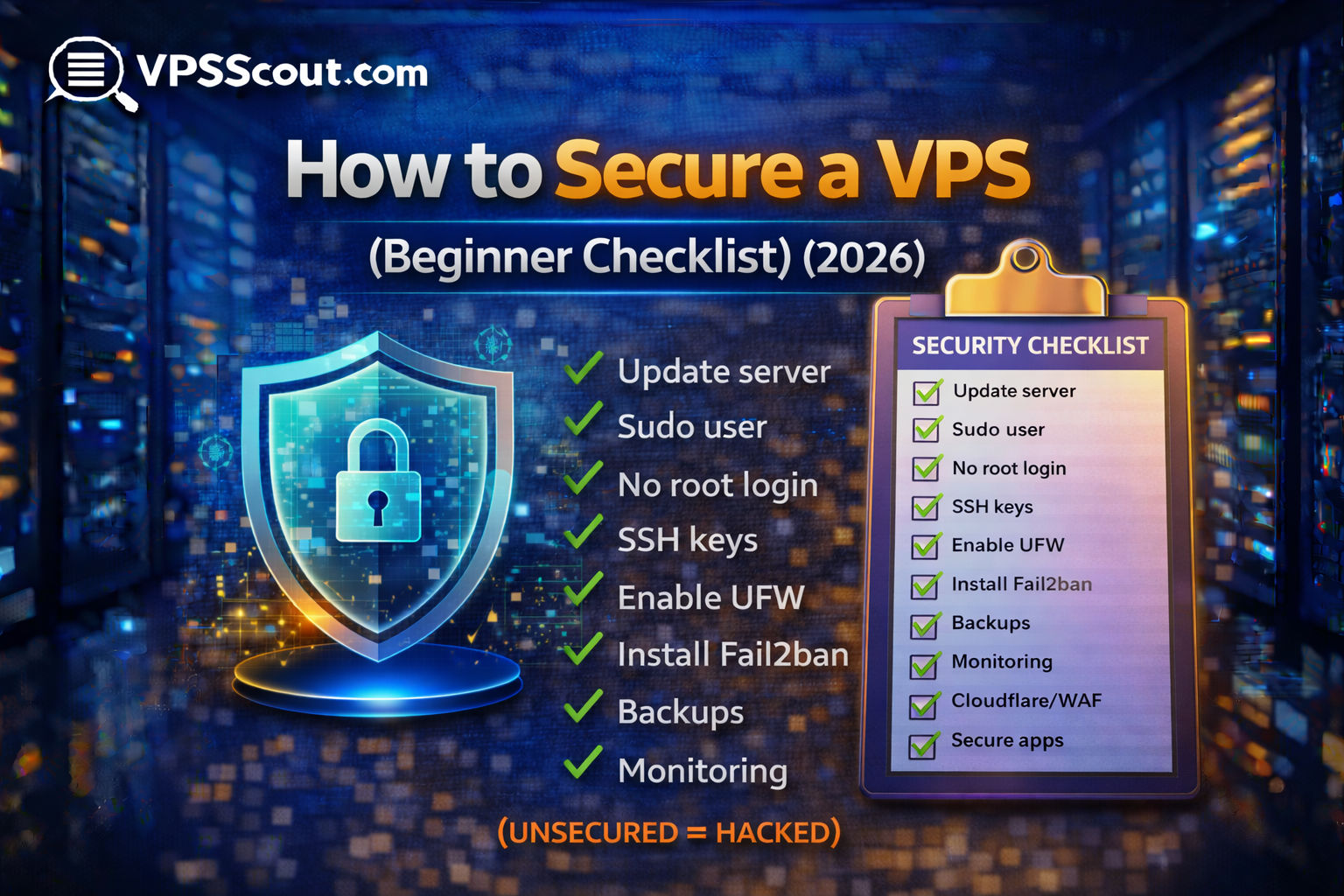
If you’re using a VPS, security is not optional.
A VPS is not like shared hosting where the provider protects everything.
On a VPS, you’re responsible for:
- server hardening
- updates
- firewall rules
- SSH access
- backups
- monitoring
And here’s the truth most beginners learn the hard way:
Unsecured VPS servers get attacked constantly.
Even if your VPS is small. Even if your site is new. Even if you don’t think anyone cares.
This guide gives you a beginner-friendly VPS security checklist you can follow step-by-step in 2026.
Quick Answer: VPS Security Checklist (Must Do)
If you only do 10 things, do these:
✅ Update the server
✅ Create a sudo user (don’t use root daily)
✅ Disable password login (use SSH keys)
✅ Change SSH settings (port + root login)
✅ Enable a firewall (UFW)
✅ Install Fail2ban
✅ Enable automatic security updates
✅ Set up backups
✅ Install a monitoring tool
✅ Secure WordPress / apps properly
Step 0: Managed vs Unmanaged VPS (Important)
Before we start, you need to know this:
If your VPS is unmanaged:
Everything below is your job.
If your VPS is managed:
The provider might do some of these tasks — but you should still verify.
Read next: Managed vs Unmanaged VPS
Read next: Best Managed VPS Hosting
VPS Security Checklist (Beginner Step-by-Step)
This checklist assumes you’re using:
- Ubuntu 22.04 / 24.04
- Debian 11 / 12
Most VPS hosting guides in 2026 use these.
1) Update Your VPS (Always First)
Run:
sudo apt update && sudo apt upgrade -y
This fixes:
- known vulnerabilities
- outdated packages
- security holes
2) Create a New Sudo User (Stop Using Root)
If you’re logged in as root, create a user:
adduser vpsadmin
usermod -aG sudo vpsadmin
Then switch:
su - vpsadmin
3) Secure SSH (This is the #1 Target)
Attackers scan VPS servers 24/7 for open SSH.
3.1 Change SSH Port (Optional but helpful)
Default SSH port is 22.
You can change it to reduce bot noise.
Edit SSH config:
sudo nano /etc/ssh/sshd_config
Find:
#Port 22
Change to:
Port 2222
Use any port between 1024–65535 (avoid common ones).
3.2 Disable Root Login (Recommended)
In the same file, set:
PermitRootLogin no
3.3 Disable Password Authentication (Strongly Recommended)
This is one of the biggest improvements you can make.
Set:
PasswordAuthentication no
Then restart SSH:
sudo systemctl daemon-reload

sudo systemctl restart ssh.socket
⚠️ Important:
Only disable passwords after confirming you can log in with SSH keys.
4) Set Up SSH Keys (Best Practice)
On your local computer, generate a key:
ssh-keygen
Then copy it to your VPS:
ssh-copy-id vpsadmin@YOUR_SERVER_IP -p 2222
Now you can log in securely without passwords.
5) Enable a Firewall (UFW)
Install UFW:
sudo apt install ufw -y
Allow SSH (important!):
sudo ufw allow 2222/tcp
Allow web traffic:
sudo ufw allow 80/tcp
sudo ufw allow 443/tcp
Enable firewall:
sudo ufw enable
Check status:
sudo ufw status
6) Install Fail2ban (Stops Bruteforce Attacks)
Install:
sudo apt install fail2ban -y
Enable:
sudo systemctl enable fail2ban
sudo systemctl start fail2ban
This blocks attackers who try repeated logins.
7) Enable Automatic Security Updates
Install unattended upgrades:
sudo apt install unattended-upgrades -y
sudo dpkg-reconfigure unattended-upgrades
Choose:
✅ Yes
This automatically installs important security patches.
8) Install a Malware Scanner (Optional but useful)
For Linux servers, you can use:
- ClamAV (basic)
- rkhunter (rootkit scanning)
Install ClamAV:
sudo apt install clamav clamav-daemon -y
Not required for everyone, but useful for beginners.
9) Set Up Backups (This is Non-Negotiable)
A secure VPS without backups is not secure.
Your VPS needs:
- automated backups
- offsite backups
- restore testing
At minimum, use:
- provider snapshots
- daily backups
Read next: VPS backup strategy
10) Monitor Your VPS (Catch Problems Early)
Monitoring helps you detect:
- downtime
- CPU spikes
- memory leaks
- disk filling up
- unusual activity
Beginner-friendly options:
- UptimeRobot (external)
- Netdata (server-side)
Bonus Hardening (Recommended)
11) Install a Web Application Firewall (WAF)
For WordPress and ecommerce sites, Cloudflare is one of the best beginner WAF solutions.
Benefits:
- blocks bots
- reduces DDoS risk
- hides your server IP (optional)
- adds caching
12) Disable Unused Services
Run:
sudo systemctl list-units --type=service --state=running
If you see services you don’t need, remove them.
Less services = less attack surface.
13) Secure Your Web Stack
If you’re using Nginx:
- disable directory listing
- limit upload sizes
- configure rate limits
If you’re using Apache:
- disable unused modules
- secure headers
WordPress-Specific Security (If You Host WordPress)
If you’re running WordPress, you must also secure WordPress itself.
Minimum steps:
- keep plugins updated
- remove unused plugins/themes
- use strong admin passwords
- enable 2FA
- use a security plugin (Wordfence or similar)
- limit login attempts
Read next: Best VPS for WordPress
Beginner VPS Security Mistakes to Avoid
❌ Leaving SSH password login enabled
This is how most VPS servers get compromised.
❌ Never updating the VPS
Unpatched servers get exploited.
❌ No backups
The fastest way to lose your site.
❌ Running everything as root
Bad practice and dangerous.
❌ Installing random scripts from YouTube
A surprising number of “VPS setup tutorials” are insecure.
VPS Security Checklist (Copy/Paste)
Use this checklist for every VPS:
✅ Update server
✅ Create sudo user
✅ Disable root login
✅ Use SSH keys
✅ Disable password login
✅ Enable UFW firewall
✅ Install Fail2ban
✅ Enable automatic security updates
✅ Set up backups
✅ Set up monitoring
✅ Add Cloudflare/WAF (optional)
✅ Secure WordPress/apps
FAQ: Securing a VPS
Is a VPS secure by default?
No. Most VPS servers are not secure by default. You must harden them.
How do hackers attack VPS servers?
The most common attacks are:
- SSH brute force
- outdated software vulnerabilities
- weak passwords
- WordPress plugin exploits
Do I need Fail2ban?
If you expose SSH to the internet, yes — it’s highly recommended.
Is changing the SSH port enough?
No. It reduces bot noise, but real security comes from:
- SSH keys
- disabling passwords
- firewalls
- updates
Final Verdict: How to Secure a VPS (Beginers)
If you’re a beginner, the most important security steps are:
- SSH hardening
- Firewall
- Updates
- Backups
Do those and you’ll already be safer than most VPS users.
Next Step
If you want the most secure VPS providers: